Agenda
| Before 7pm | Log in Routine |
| 7:00 - 7:30 | Recipe Exercise |
| 7:30 - 8:00 | CSS Demo |
| 8:00 - 8:15 | Inline CSS |
| 8:15 - 8:30 | Colors |
| 8:30 - 8:45 | Fonts |
| 8:45 - 9:00 | Exercise: Make your own how-to tutorial |
Log in Routine
Here are a few things you'll do at the beginning of every class:
- Log into the the student account on the lab computer.
- Bring up the class page in the Chrome browser: contracostacodes.com/html-css. Then navigate to this week's classwork, which should be linked in the right column.
- Sign into the Contra Costa Codes Slack team with your email and password on the lab computer.
- Log into Glitch and pull up the exercise from last class.
Remember to log out Slack and Glitch at the end of class!
Recipe Exercise
The goal of this exercise is to take this recipe from a Google document and add HTML tags so it can be displayed properly as a webpage.
The work we did last week can be found in the contracostacodes Glitch project as recipe.html. You can make your own copy of this file by clicking the icon with 3 horizontal dots next to the reciple.html filename, selecting the "Duplicate" option, and renaming the copy to recipe-yourname.html.
These are the HTML elements we will be using with links to w3schools tutorials.
Styling Text with CSS
Let's take a look at our basic recipe page can be transformed with CSS.
- contracostacodes.glitch.me/html-css/recipe.html
- contracostacodes.glitch.me/html-css/recipe-styles.css
Internal and External Stylesheets
I've created a stylesheet called recipe-styles.css and linked to it in the head of the HTML document. This is called an external stylesheet.
              <head>

                <link rel="stylesheet" type="text/css" href="mystyle.css">

              </head>
You can also add internal CSS styles inside the head of the HTML document between an opening and closing <style></style> tag
Learn more about how to include CSS in HTML.
Syntax for CSS Rules
For both internal and external style sheets, you have a list of CSS rules.
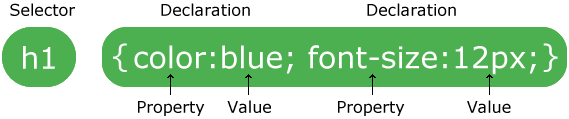
Each rule starts with a selector, which targets the type of element you want to style. Then between opening and closing curly braces, you name a property and set its value. Each property:value declaration should end in a semicolon.
Learn more about CSS selectors.
Inline CSS
You can apply CSS styles to just one specific element on a page by using inline styles.
<p style="color:seagreen;font-weight:bold;">This should be green and bold
</p>
Here you add a style attribute to the element and inside the quotes you list the property:value pairs separated by semicolons.
Learn more about styling text with inline CSS.
CSS Colors
You can set a color or background-color property using specifc color names or hexcodes or rgb values.
I'll show you how you can use the Chrome developer tools to find the exact color you want and its hexcode or rgb value.
Learn more about types of web colors.
CSS Fonts
I'll show you how to change the font-family and font-size properties, and how to add Google fonts to your website.
Learn more about CSS fonts.
Exercise: Make your own how-to tutorial
Pick a skill, recipe, craft, or project you're interested and write a how-to tutorial.
- Start by writing out the steps in a document without HTML. For this project, it's OK to start with a tutorial you found online.
- Create a new Glitch project with the name format: username-howto.
- Share the link to your project in the #html-css Slack channel.
- Feel free to copy the code from recipe.html to get started. Or if you're feeling confident, markup your tutorial from scratch!
- Try to find an hour this week to work on the project at home, or come in 30 minutes early before next week's class.
- There will be time at the beginning of class to answer questions and review each others code.
- We'll use this tutorial to practice the CSS skills we'll be learning over the few next weeks!