Hello World! Variables and Functions
Agenda
| 20 min. | Writing JavaScript in a Code Editor |
| 20 min. | JavaScript Output from the Console |
| 20 min. | Storing Data in Variables |
| 10 min. | Demo: MadLibs |
| 15 min. | Sign up for Github and Glitch |
| 5 min. | Introduce This Week's Exercise |
Objectives
- Display text in the console, in a pop-up window, and in the HTML document.
- Run JavaScript code directly in the console and within HTML documents (internally and externally).
- Declare variables and assign them values.
- Concatenate strings and variables.
- Create a simple madlibs game.
Before Class Starts
- Connect to the internet.
- Bring up the class page for this week: contracostacodes.com/javascript/week2.html
- Sign into Slack by clicking the link in the navbar.
- Download a code editor of your choice. I'll be using Visual Studio Code.
Embedding JS in HTML
In order to run in your browser, JavaScript code must be embedded in HTML. It can be typed directly into a .html page between script tags. Or you can save all your JavaScript code in a separate .js file and link to it using script tags in the HTML page.
Check out examples in this w3schools tutorial: JavaScript Where To.
JavaScript Output
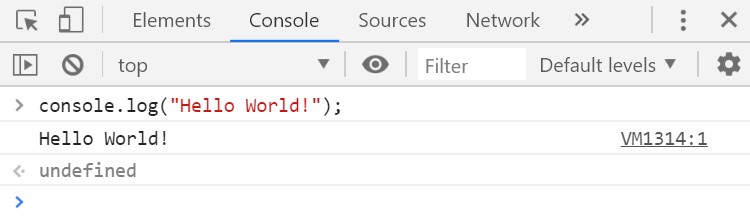
console.log()
This built-in method displays text within the browser's console. Also known as "logging" or "printing."
Whatever you print with this method will not show up on the webpage. It only displays in the console, so this method is most often used for debugging issues and testing your code.
- Open up the Developer Tools by right clicking on this page and selecting Inspect.
- Select the Console tab, and you should see an blue arrow next to a blinking cursor.
You may see some error messages in red. If they are there when you first open the page and you haven't typed any code yet, then you can probably ignore those errors. Once you run your own code, those error messages could help you figure out what went wrong.
- Type in the
console.log()function. - Between the parenthesis, type
"Hello World!"as the function's input. Don't forget the parenthesis. They tell the browser that your input is a string, and the quotation marks won't be shown in the output. - End with a semicolon. Lines of code, or statements, in JavaScript usually end in semicolons.
- Press the Enter key to run that line of code. You should see the phrase printed out on the line below the code you just entered.
alert()
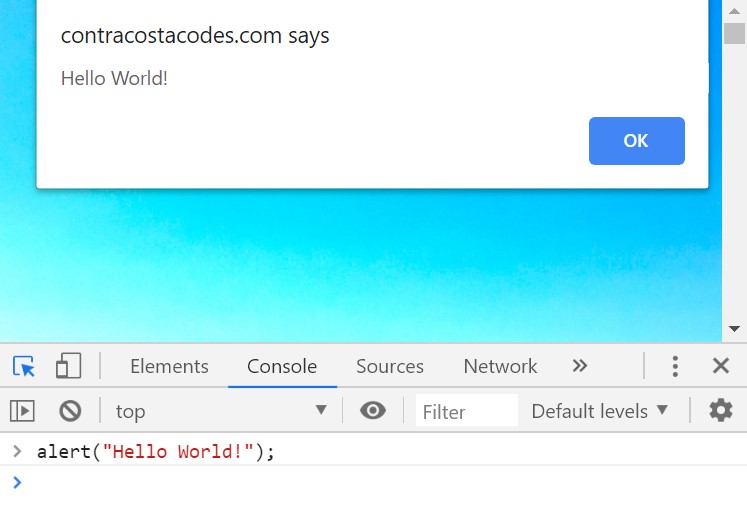
This built-in function displays text in a pop-up window.
Since pop-ups are annoying, alert() isn't currently used on professional websites, but we will use them occassionally during the learning process.
- Run this function the same way you ran
console.log(). - You should see the phrase printed out in a pop-up window.
document.write()
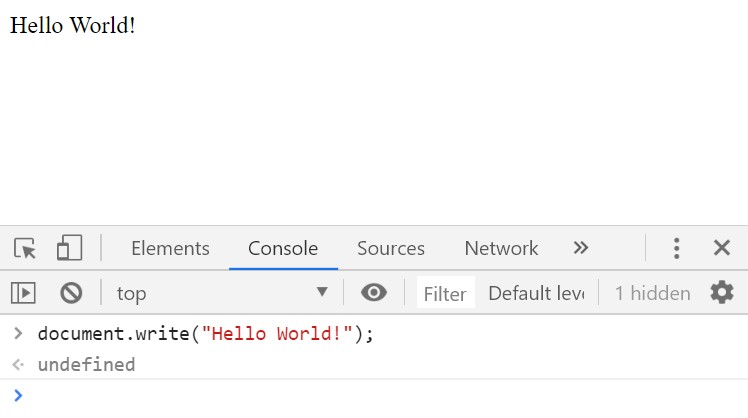
This built-in function prints text in the body of an HTML document. It will be displayed on the webpage, but it can also erase all other content within the body element, so we will only use it as a learning exercise.
- Run this function the same way you ran
console.log(). - You should see the phrase printed out on the webpage. This overwrites anything that was previously on the page.
document.getElementById("id-name").innerHTML
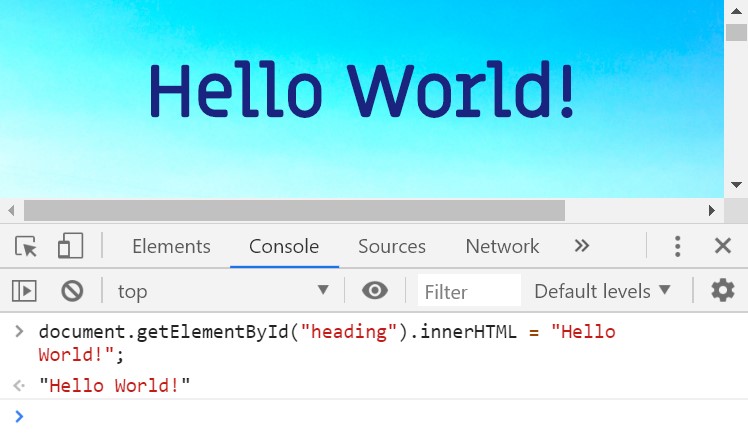
There are many ways to select HTML elements using JavaScript. Since id's must be unique, the most specific way is to use the document.getElementById() method. By changing the innerHTML property of that element, you can replace it's content with your text. This is done most often on professional websites.
Change the heading for this page
- If you inspect the top heading on this page, you'll see that it is an
h1element with the id of"heading".<h1 id="heading">JavaScript Programming Basics: Week 2</h1> - To select this element by it's id, start typing this method into the browser console. Make sure the id name matches the id from the HTML and that it is wrapped in quotes.
document.getElementById("heading").innerHTML - Before you press enter, you need to assign a new value to this element's inner HTML by using an equal sign followed by your text.
document.getElementById("heading").innerHTML = "Hello World!";
Variables
Declaring variables
The first time you use a variable, you need to declare it using the var keyword followed by the name of the variable. Optionally, you can assign the variable an initial value at the same time. Or you may choose to leave it undefined until later in your program.
- Declare a variable called
yourNameand leave it undefined.var yourName; - Declare a variable called
greetingand assign it the value of the string "Hey there!"var greeting = "Hey there!"; - Later, when you finally assign a value to the variable
yourName, you don't need to use the keywordvar.name = "Christina";
Check out more examples and rules for naming variables in this w3schools tutorial: JS Variables.
With the newer versions of JavaScript, you can also use let and const.
Arithmetic with numbers and strings
Numbers and Strings are 2 different data types, and JavaScript has different rules for each.
You can perform arithmetic operations on Numbers like addition (+), subtraction (-), multiplication (*), and division (/).
          var catAge = 2019 - 2014;

          var humanYears = (catAge - 2) * 4 + 24;

          var dogYears = humanYears / 7;
You can also add strings together. This is called concatenation.
            var a = "Java";

            var b = "Script";

            var c = a + b;


            var name = "Christina";

            var greeting = "Hey there, " + name + "!";
What happens if you try to combine Numbers and Strings?
            var laugh = "ha";

            var length = 5;

            var added = laugh + length;

            var multiplied = laugh * length

            var subtracted = laugh - length
prompt()
You can collect data from a user with the built-in prompt() function. This creates a pop-up window that allows the user to type a response.
The input for this function is a String that will be the text prompt the user sees, and the output is whatever the user types into the textfield. You can save this output as a variable and use it later in your program.
            var name = prompt("Oh hey, what's you're name?");

            var greeting = "Nice to meet you, " + name + "!";

            alert(greeting);
Demo: MadLibs
Let's use what we have learned about variables, alert(), prompt(), and document.write() to build our own MadLibs story.
Exercise: Make your own MadLib
Examples from MadTakes.com